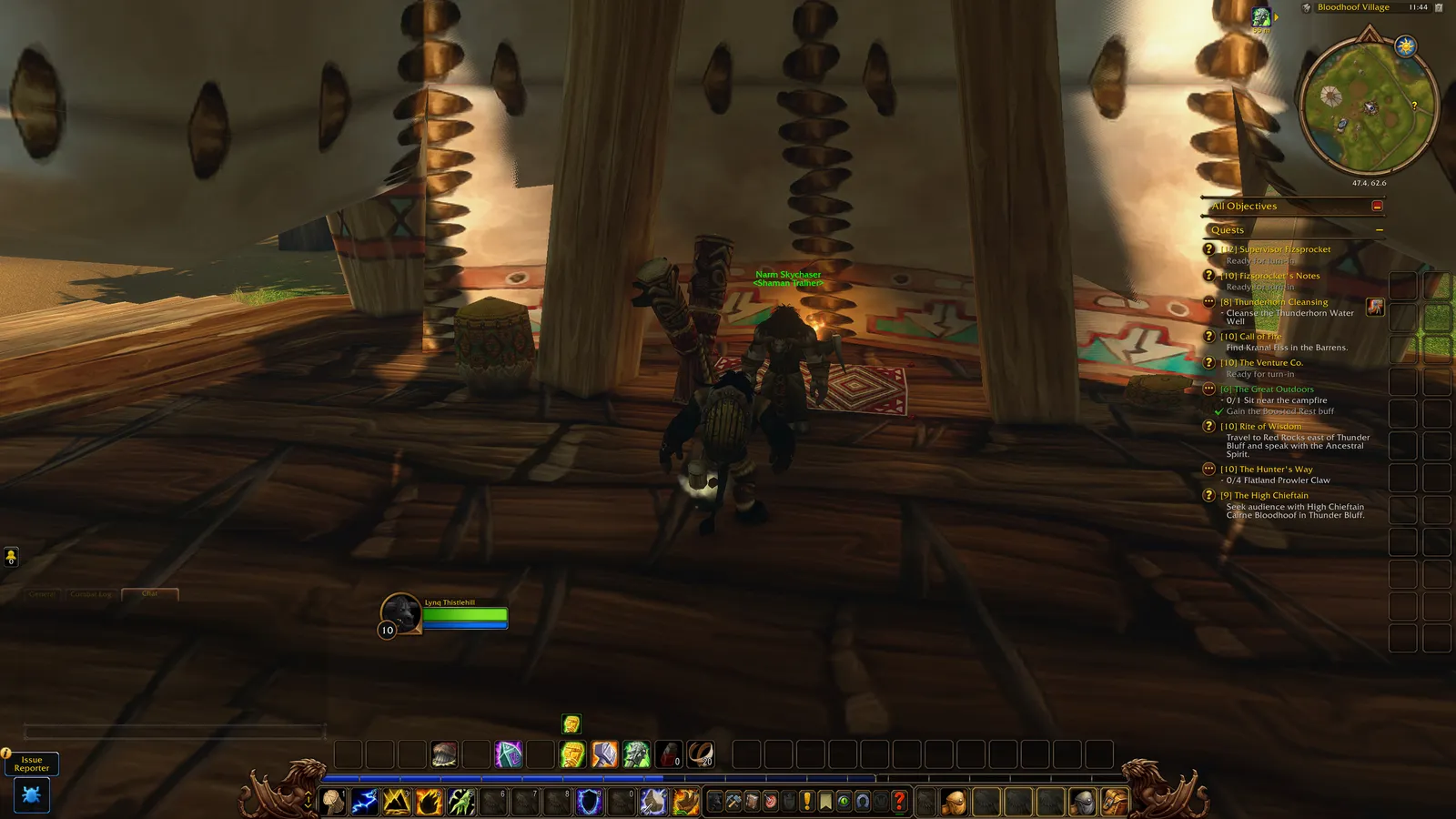
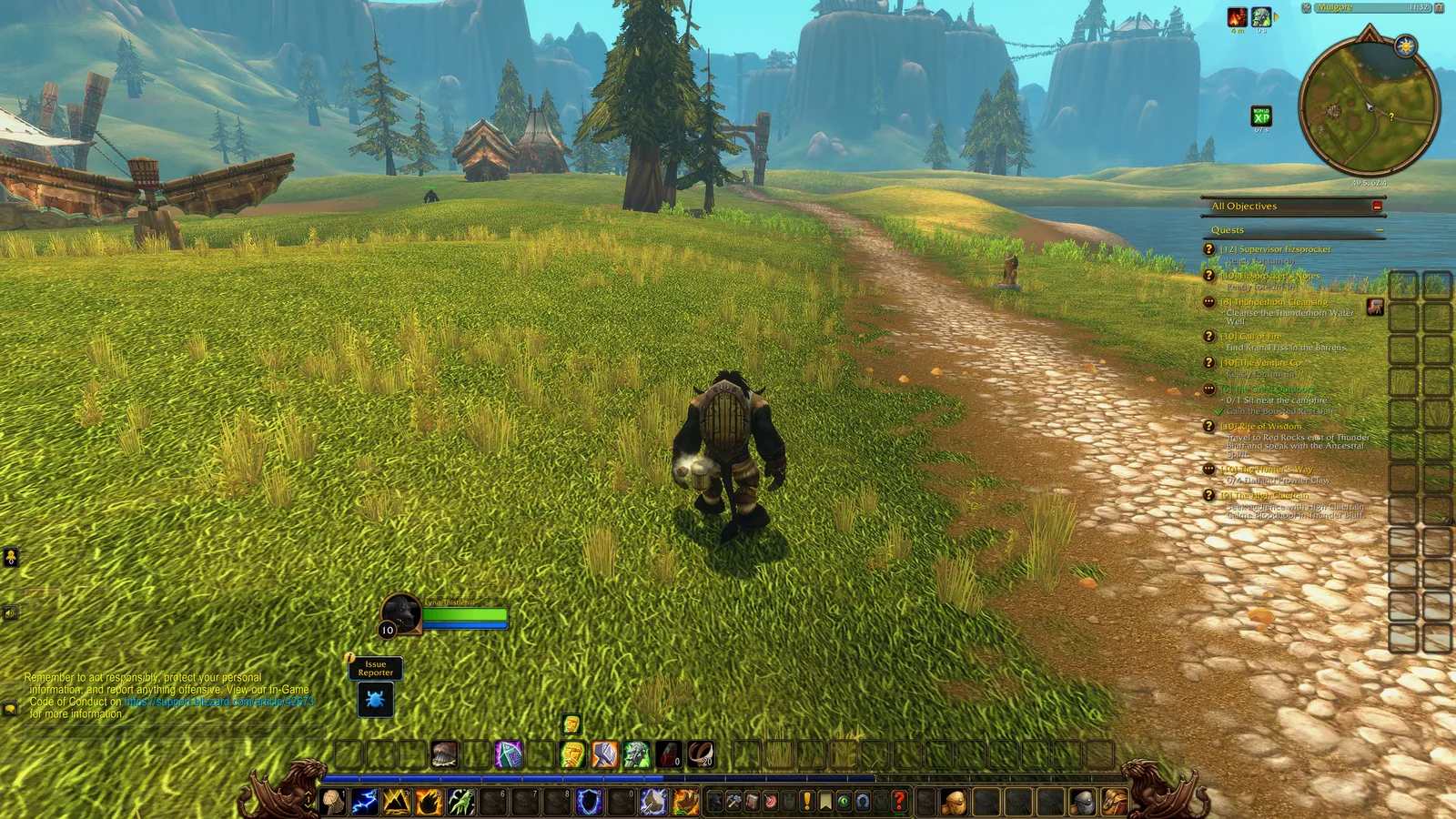
WoW Forever Screenshots: How to Take One and Where They Are Saved
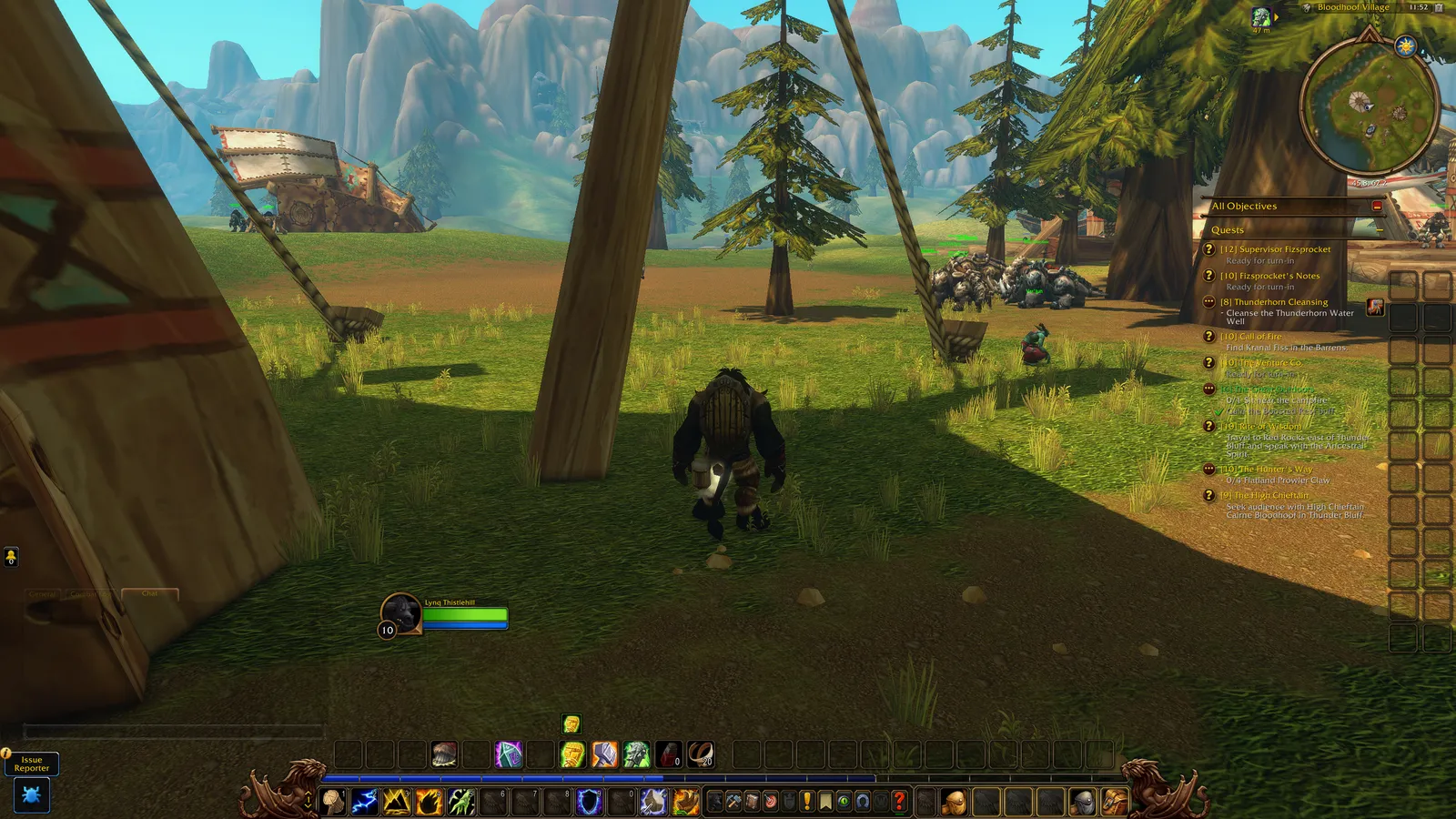
Taking a screenshot in WoW Forever works the same way as in other modern WoW clients. Tested on the beta by Lynqoid on 7 October 2026.
Taking a screenshot
Press the Print Screen key (often labelled PRNT SCRN, near the top right of your keyboard). Holding Ctrl + Print Screen also takes one quickly.
Where screenshots are saved
On Windows with the default install location, screenshots go to:
C:\Program Files (x86)\World of Warcraft\_classic_beta_\Screenshots
If you installed WoW on a different drive, the same _classic_beta_\Screenshots folder will be inside that install instead. The folder name is for the beta client and may change at launch.
Improving screenshot quality
You can raise the quality by typing these two commands into the chat box:
/console screenshotformat jpg
/console screenshotquality 10
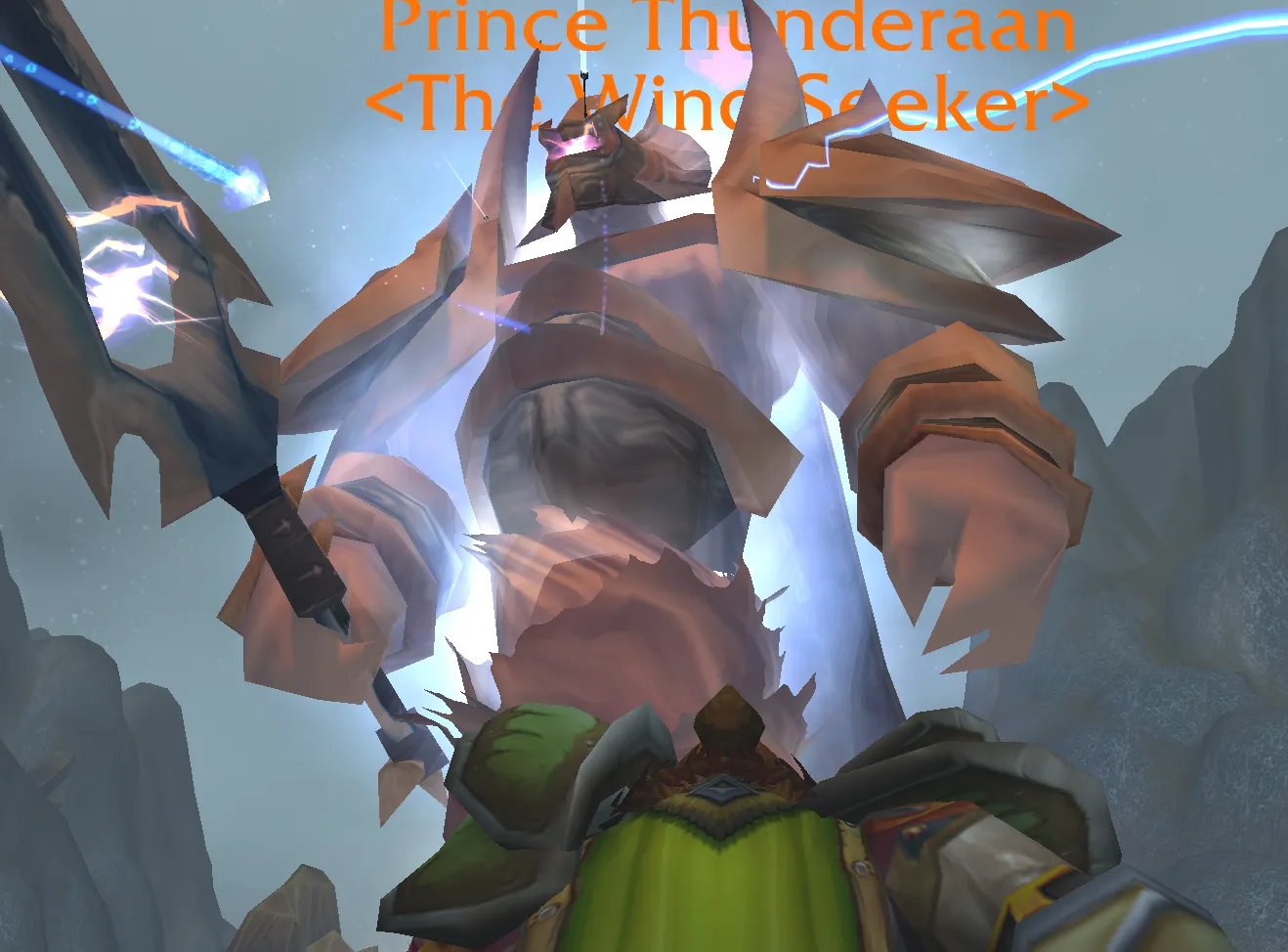
The example screenshot above was taken this way and came out at 3840x2160.
Related guides
- WoW Forever Addons: which addons work in Forever
- System requirements
Last checked 7 October 2026 (beta). Sources: First-hand testing by Lynqoid (Team Overpowered). No official Blizzard documentation was found for the beta client.
Frequently asked questions
How do I take a screenshot in WoW Forever?
Press the Print Screen key on your keyboard. Holding Ctrl and pressing Print Screen also works, according to our beta testing.
Where are WoW Forever screenshots saved?
In the beta they are saved to the _classic_beta_\Screenshots folder inside your World of Warcraft install folder, for example C:\Program Files (x86)\World of Warcraft. If you installed the game on another drive, look there instead.
How do I improve screenshot quality in WoW Forever?
Type /console screenshotformat jpg and /console screenshotquality 10 in chat. These are the commands our tester used in the beta.